Project
Planned work that takes one day or spans several days.
How it works
A simple workflow for small contractors and home service businesses: organize the visit, prepare the estimate, schedule approved work, and track the invoice and payment.
Less admin. More time for customers. More opportunity to grow revenue.
Choose an existing customer or add a new one. Schedule an estimate visit or service call and prepare a confirmation to review and send by text or email. You can book an estimate visit before you know the final scope or price.
Add the scope and price when you are ready, then share the estimate for customer review and approval. After approval, contact the customer from the scheduling card and agree on a date. Service calls that do not need an estimate can go straight to scheduled work.
Open the job or service visit, add notes and photos, and record what was done. Mark the work complete so it is ready for invoice review.
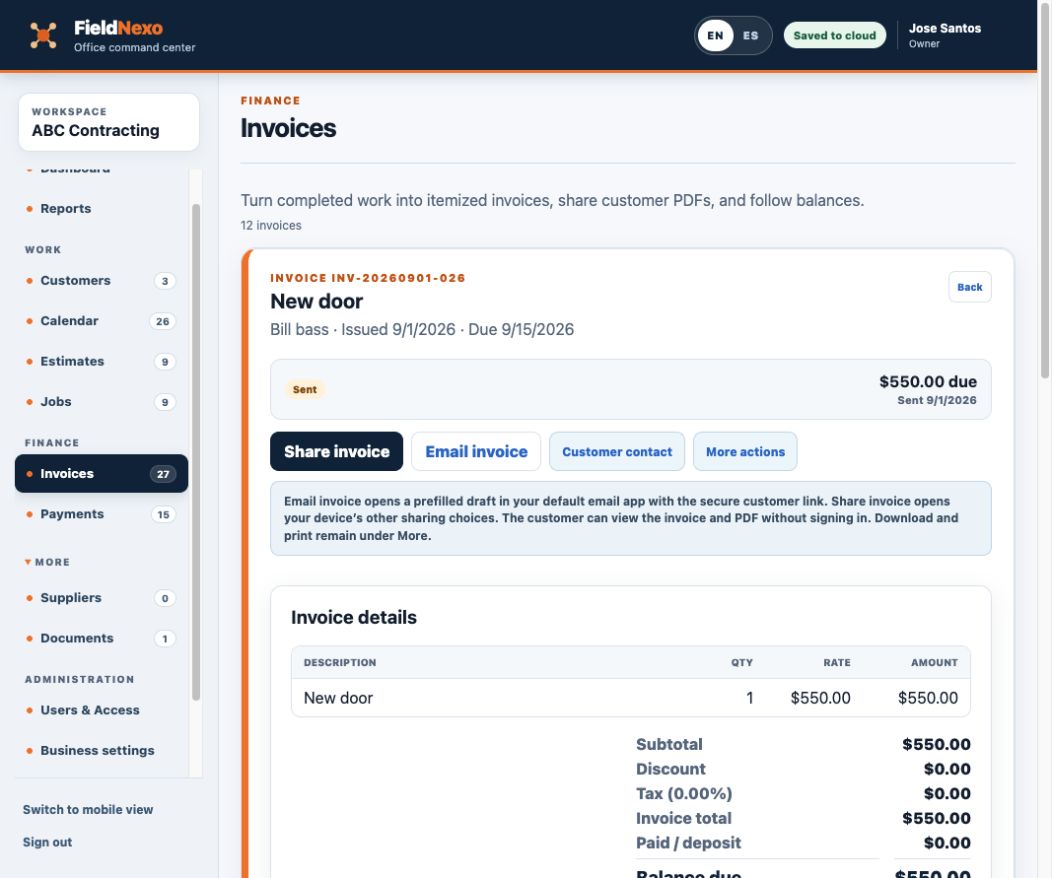
Confirm the items, prices, and payment instructions, then share the invoice. Customers can review it and open a printable version. Record payments received outside FieldNexo and keep track of the remaining balance.
Customer communication
The kind of work
Planned work that takes one day or spans several days.
Repair, troubleshooting, or emergency work that needs a service visit.
Meet the customer and prepare a price for work they are considering.
Repeat visits on a weekly, every-other-week, or monthly schedule.
User access
Four clear roles keep the owner in control while giving each team member the tools required for their work.
In the office
Sign in with the same email, choose the same business, and what was saved on the phone shows up on its own when there's a connection. No pairing code, no sync button.
Tools
Start with the essentials, then add suppliers, tasks, reports, and work checklists when they become useful.
Vendor and subcontractor contacts in one place.
A separate list alongside jobs.
Simple all-time totals for reviewing your work.
Steps that copy themselves into every matching job.
Create your owner account and start a 14-day free trial. No payment card required.